

You just posted a great photo or Reel. You check your insights, and you see that little shares icon ticking up 5, 10, maybe even 20 shares!
Naturally, you want to know: “Who are these people?”
Are they your friends hyping you up? Is it a brand noticing your work? Or did you just go viral in a group chat you don’t know about?
Can you really see who shared your post on Instagram? (Read This First)
Here is the honest truth: Instagram does not allow you to see a complete list of everyone who shared your post.
To protect user privacy, Instagram hides the identity of anyone who:
- Sent your post in a Direct Message (DM) to a friend.
- Shared your post to a Private Story (Close Friends).
- Has a Private Account themselves.
However, there is good news. You can see exactly who shared your post if they shared it to a Public Story within the last 24 hours.
Below, we will walk you through the only working method to find these people and why you should avoid “spy apps” that claim to do more.
Also read: Instagram Subscriptions: Features, Benefits And Requirements
How to See Public Story Reshares
Best for: Seeing which public accounts reposted your content.
If someone with a Public profile shares your post to their Instagram Story, you can see their username. This is the “official” way to track shares, but it comes with a time limit: Story shares disappear after 24 hours.
If you want to catch them, you have to look while the story is still active.
Step-by-Step Guide:
- Open the Post: Go to your Instagram profile and tap on the specific photo or Reel you want to check.
- Find the Three Dots: Look for the three small dots (…) in the top right corner of the post (or bottom right for Reels). Tap them.
- Look for “View Story Reshares”:
- If you see this option: Tap it! You will see a grid of all the current public stories that feature your post. You can click on them to see exactly who shared it and what they said.
- If you DON’T see this option: This means nobody with a public account has currently shared your post to their story.
Beginner Tip: If you have a Private Account, this button will never appear. This is because your posts cannot be shared by others if your profile is locked. To allow people to share your content, you must switch your account to Public in your Privacy Settings.
New for 2026: Viewing Reshares After 24 Hours (Archive Insights)
Historically, once a Story expired after 24 hours, the list of people who reshared it vanished. In 2026, Instagram began rolling out Archive Insights. This experimental feature allows Professional accounts to see public reshare data even after the Story has moved to your Archive.
How to access Archive Insights:
- Go to your Profile and tap the three-line (hamburger) menu.
- Tap Archive and ensure you are viewing the “Stories Archive.”
- Select the Story you want to check.
- Swipe Up on the Story (as if it were still live).
- Look for the “Reshares” KPI: If you are in the test group, you will see a list of public accounts that shared this specific Story, even if it’s weeks old.
Note: This feature is currently in a “Beta” rollout. If you only see the total number of shares but no names, your account may not have the full Archive Insights update yet.
The Reposts Tab: Finding Permanent Shares on Profiles
In 2026, Instagram introduced a dedicated Reposts Tab. This feature allows users to share your Reels or feed posts directly to their own followers, where they live permanently on their profile. For creators, agencies, and social media teams managing several brands or client accounts, tools that help to manage multiple Instagram workflows securely also make it easier to keep account activity isolated and organized across different projects.
Unlike a Story share that vanishes after 24 hours, a Repost is a long-term endorsement. If someone reposts your content, it means they want your post to represent their own brand or personality.
How to see who has “Permanently” shared your post:
- Check Your Notifications: When a user clicks the “Repost” button (the two-arrow icon) on your post, you receive a direct notification. This is the only way to get a real-time list of names.
- Visit Follower Profiles: If you suspect a “Super Fan” or a collaborator has shared your work, go to their profile.
- Look for the Repost Icon: Next to the Grid, Reels, and Tagged tabs, you will see a new tab marked with two arrows forming a square.
- Browse the Library: Tap this tab to see every post that user has shared. If your content appears here, it is currently being recommended to that user’s entire audience as part of their permanent feed.
Why the Reposts Tab matters for your ranking:
Search engines now prioritize “social proof” that lasts. Because Reposts are permanent, they drive consistent, long-term traffic back to your original post. When Google sees a steady stream of clicks coming from various “Repost Tabs” across Instagram, it signals that your content is an authoritative resource, helping your blog post and Instagram profile rank higher in search results.
How to Check Instagram Share Counts Using Insights
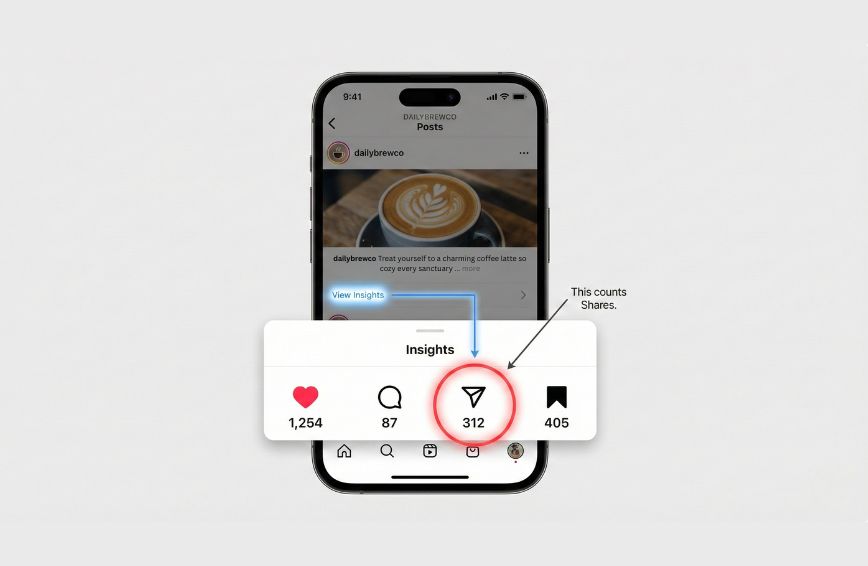
Best for: Knowing if your post is going viral in DMs.
If the “View Story Reshares” button is missing, it doesn’t mean nobody shared your post. It just means they did it privately.
Most sharing on Instagram happens in DMs (Direct Messages) or private group chats. While Instagram will never show you the names of people who did this (that would be a huge privacy breach!), they will tell you exactly how many times it happened.
To see this number, you need to look at your Insights.
Also read: Instagram Carousels Vs Reels: What Works Best
Prerequisite: You Need a Professional Account
You cannot see share counts on a personal account. You must switch to a Business or Creator account.
- Is it free? Yes.
- Does it hide my posts? No.
- How to switch: Go to Settings > Account type and tools > Switch to professional account.
Step-by-Step: How to View Share Counts
Once you have a Professional account, follow these steps:
For Regular Photo Posts:
- Go to your profile and tap on the post.
- Tap the small text button that says “View Insights” (located directly under the image, above the caption).
- Look for the Paper Airplane icon.
- The number next to this icon is the total number of times your post was shared to Stories or sent in DMs.
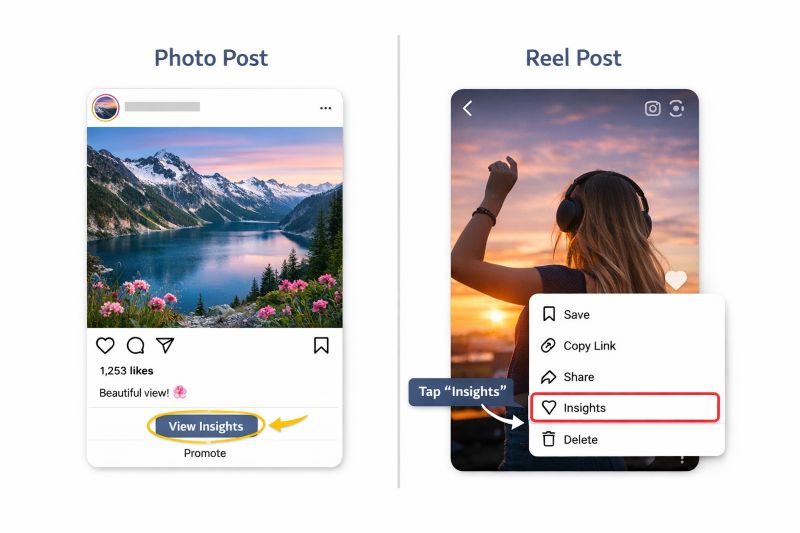
For Reels (Slightly Different):
- Open the Reel you want to check.
- Tap the three dots (…) in the bottom right corner.
- Tap “Insights” from the menu that pops up.
- Scroll down to the “Interactions” section and look for the Shares count (sometimes listed next to a curved arrow or paper airplane).
Vital Tip: Insights are not retroactive. If you switch to a Professional account today, you will only see share counts for posts you make from now on. You cannot see data for posts you made while your account was personal.
Trick: How to Find Out Who Shared Your Instagram Post (The Honey Pot)
Best for: Identifying specific people who are watching you closely.
Since Instagram won’t give you a list of names for shares, you have to get creative.
We call this the “Honey Pot” Strategy.
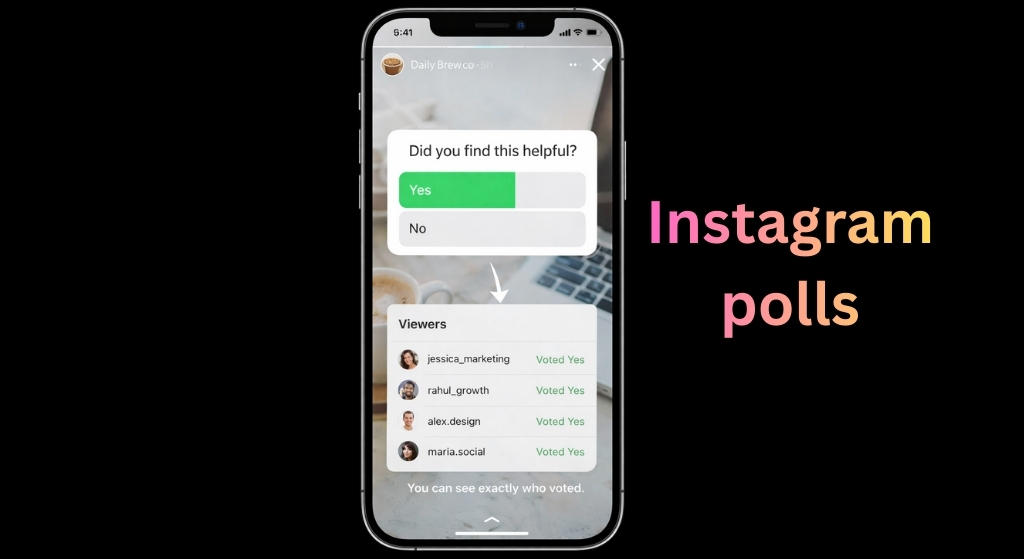
The logic is simple: You can’t see who shared your post, but you CAN see exactly who interacts with a Story Sticker. So, we use a Story to “trap” your silent viewers and make them reveal themselves.
How It Works
When you post a poll or a question on your Story, Instagram shows you the exact username of every single person who votes or answers. These people are your “Super Fans”—the ones most likely to share your content.
Step-by-Step: Setting the Trap
- Share Your Post to Your Story:
- Go to your post.
- Tap the Paper Airplane icon.
- Select “Add to story”.
- Add an Interactive Sticker:
- Tap the Sticker icon (smiley face) at the top.
- Choose a Poll, Slider, or Question sticker.
- Example: Add a Poll that asks, “Did you find this post helpful?” (Yes / No).
- Wait for 12-24 Hours. Let your followers see it.
- Check the Results:
- Open your Story.
- Swipe Up on the screen.
- Look at the list of “Viewers.”
- Next to each name, you will see if they voted.
Why This is Better Than Tracking Shares: If someone votes “Yes” on your poll, they have publicly raised their hand to say, “I like this!” You now have a specific list of names you can reply to or thank personally.
Pro Tip: Don’t just look at who voted look at the Emoji Slider. If someone slides the emoji all the way to the end (the “100” mark), that is a massive signal that they loved your content. These are the people who are probably sharing your posts in their DMs!
Indirect Ways to See Who Shared Your Instagram Post (What Actually Works)
Instagram doesn’t show a full list of people who shared your post.
But that doesn’t mean you’re completely blind.
If you know where to look, you can identify patterns, signals, and even specific users who shared your content.
1. Story Mentions & Tags (Most Reliable Method)
The only time Instagram reveals who shared your post is when the share is public and attributed.
If someone:
- Shares your post to their Story
- Tags your username
You’ll receive a notification and can view their Story directly.
Why this matters:
This is the only direct way to see exactly who shared your content.
Pro tip:
Encourage this behavior:
- “Share this to your Story & tag me”
- Repost tagged stories to build momentum
2. Use the “View Story Reshares” Feature
Instagram has a built-in (but limited) feature that many users miss.
How to check:
- Open your post
- Tap the three-dot menu
- Select “View Story Reshares“
What you’ll see:
- Public accounts that reshared your post
- Only while their Story is still active (within 24 hours)
Limitations:
- Does not show private accounts
- Does not show DM shares
- Disappears after 24 hours
This feature works but only in a short visibility window.
3. DM Replies & Messages (Hidden but Powerful Signal)
You cannot see who shared your post via DMs.
But you can detect it indirectly.
Look for messages like:
- “Someone sent me this”
- “Saw your post in a group chat”
- “This was shared with me”
These are clear indicators that your post is being shared privately.
Why it matters:
DM shares are one of the strongest signals of engaging content even though they’re invisible.
4. Sudden Spikes in Reach or Followers
When your post gets shared, it often reaches people outside your audience.
This creates noticeable patterns in your analytics.
Watch for:
- Sudden increase in reach or impressions
- New followers from unfamiliar audiences
- Traffic spikes without a clear source
How to interpret it:
| Signal | Likely Cause |
|---|---|
| Reach increases, but likes stay flat | Private (DM) sharing |
| New followers appear quickly | Story reshares |
| Traffic spike from non-followers | Content being widely shared |
Shares act as a distribution signal, not just engagement.
5. Engagement From Non-Followers
Another subtle clue is engagement from people who don’t follow you.
Look for:
- Likes from unfamiliar accounts
- Comments like “This was shared with me”
- Profile visits from new audiences
These users often discovered your content through shares, not your profile.
6. Notifications That Reveal Shares
Instagram sometimes gives indirect visibility through notifications.
You may see alerts like:
- “X mentioned you in their story”
- “X shared your reel”
But this only happens when:
- You’re tagged
- The share is public
Otherwise, the share remains completely hidden.
7. Reverse Tracking (Advanced Insight)
If your content is widely shared, it may start appearing outside your original post.
Signs include:
- Your caption being reused
- Screenshots of your content circulating
- Reposts on other pages (with or without credit)
What you can do:
- Search unique phrases from your caption
- Monitor repost or niche pages
- Track branded keywords
This won’t show who shared but it shows how far your content is spreading.
What Doesn’t Work (Common Myths)
Let’s clear this up:
- There is no way to see all users who shared your post
- Third-party apps cannot reveal this data
- Instagram does not allow DM tracking
This is intentional because Instagram protects user privacy around sharing.
Key Takeaway
You may not see every share.
But you can detect sharing behavior through patterns, signals, and visibility clues.
That’s how experienced creators track what’s actually working.
Do Apps to See Who Shared Your Instagram Post Work? (Scam Alert)
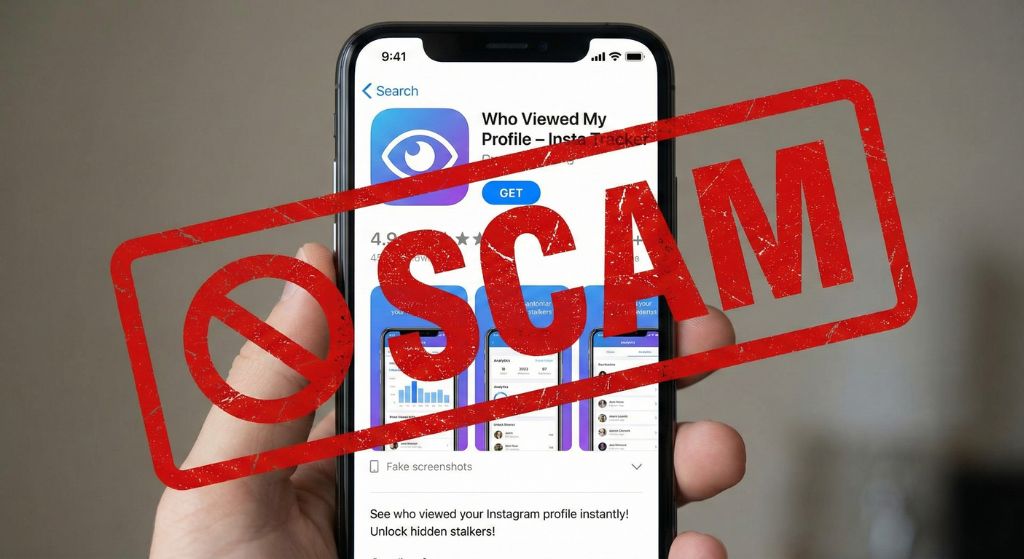
Best for: Keeping your account safe from hackers.
If you search the App Store for “Who Viewed My Profile” or “Instagram Stalker,” you will see dozens of apps claiming to show you exactly who is looking at your page.
DO NOT download these apps.
Here is why they are dangerous:
- They Are Lying: Instagram’s official system (API) does not share private data like “profile views” or “DM shares” with anyone not even developers. These apps are literally making up random lists of your followers to trick you.
- They Steal Your Password: To “unlock” the list, these apps require you to log in with your Instagram username and password. Once you do that, you have given your login credentials directly to a scammer.
- You Can Get Banned: Instagram’s security system is very smart. If it detects a suspicious third-party app logging into your account, it may flag your profile, shadowban you, or disable your account permanently.
The Rule: If a feature isn’t inside the official Instagram app, it probably doesn’t exist. Don’t risk losing your account just to see a fake list of names.
The Bottom Line: Focus on “Saves,” Not “Shares”
So, can you see who shared your Instagram post?
- Public Story Reshares: Yes (if you catch them in 24 hours).
- Private DMs: No (but you can see the total count).
While it is frustrating not to know exactly who is sharing your content, remember that privacy is a good thing. Just like you wouldn’t want Instagram to broadcast your private DMs to the world, your followers appreciate the same protection.
Your Next Step: Instead of worrying about who shared your post, focus on Saves (the bookmark icon). When someone Saves your post, it means they loved it so much they want to come back to it. That is the ultimate compliment and the best sign that your account is growing!
FAQs: Checking Instagram Post Shares & Privacy
Q: Can people see if I send their post to a friend in a DM?
A: No. If you send someone’s post to a friend via Direct Message, the original poster will only see the “share count” go up by one. They will never see your username or know that it was you who sent it.
Q: Does Instagram notify users if I screenshot their post?
A: No. You can screenshot posts, profiles, and even Stories without the other person knowing. The only time Instagram sends a notification for screenshots is if you screenshot a disappearing photo or video sent in a private DM.
Q: Why can’t I see the “View Story Reshares” option on my post?
A: This usually means one of two things:
- Nobody has shared your post to a Public story yet.
- Your account is Private. (Remember: If your account is private, nobody can share your posts to their story at all!)
Q: If I switch to a Professional Account now, can I see who shared my old posts?
A: No. Instagram Insights only start tracking data after you make the switch. You will not be able to see share counts for any posts you made while your account was still Personal.
Q: Can I see exactly who viewed my Instagram profile?
A: No. While Professional accounts can see how many people visited their profile (e.g., “150 Profile Visits this week”), Instagram does not provide a list of the specific usernames.
