
Close Menu
    Facebook X (Twitter) Instagram
    The SocioBlend BlogThe SocioBlend Blog
    • Social Media
    • Technology
    • Business
    • SEO
    • Content Marketing
    • Write for us
    The SocioBlend BlogThe SocioBlend Blog
    Home»Technology»Everything You Need to Know about Discord “About Me” Feature
    Technology

    Everything You Need to Know about Discord “About Me” Feature

    Divya GuptaBy Divya GuptaJuly 21, 2021Updated:October 24, 20232 Comments3 Mins Read
    Discord About Me Feature
    Share
    Facebook Twitter LinkedIn Pinterest Tumblr WhatsApp

    Discord, a popular messaging app for the gaming community worldwide, allowing its users to personalize their profile better by adding more details in their “about me” section. Under this latest Discord “about me” feature, the users will get the ability to customize their profile by filling a short bio, along with the customized banner (only for those who have Discord Nitro Subscription). The latest about me feature is part of the “Custom Premium Profiles” update of the Discord platform. Here is everything you need to know about this feature and how to use it on your profiles to enhance the look of your profile.

    Related: How to Increase Discord Member Limit

    How to use the latest Discord “About Me” feature on your profile?

    The latest “about me” feature is live on the Discord platform to be used by users worldwide on their devices, and you don’t need Discord Nitro to plan to access this feature. But if you want to upload the custom banner along with the personalized “bio” details, then Discord Nitro is a must-have thing.

    Here is how you can access and use this latest “about me” feature on your profile:

    Related: Buy Discord Server Members

    Steps to access the “About Me” feature on your profile

    • Open the Discord platform on your desktop and navigate to the “User Settings”.
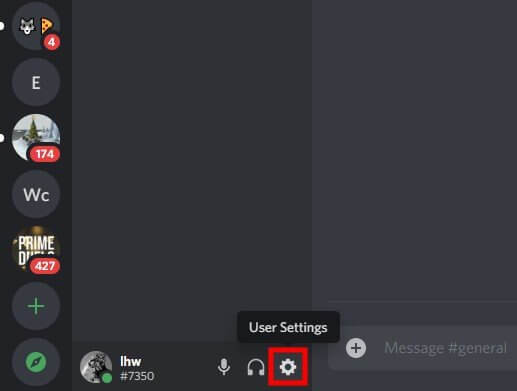
    How to access "about me" feature in Discord
    Image Source: Followchain
    • Under the “User Settings”, click on the “User Profile” option.
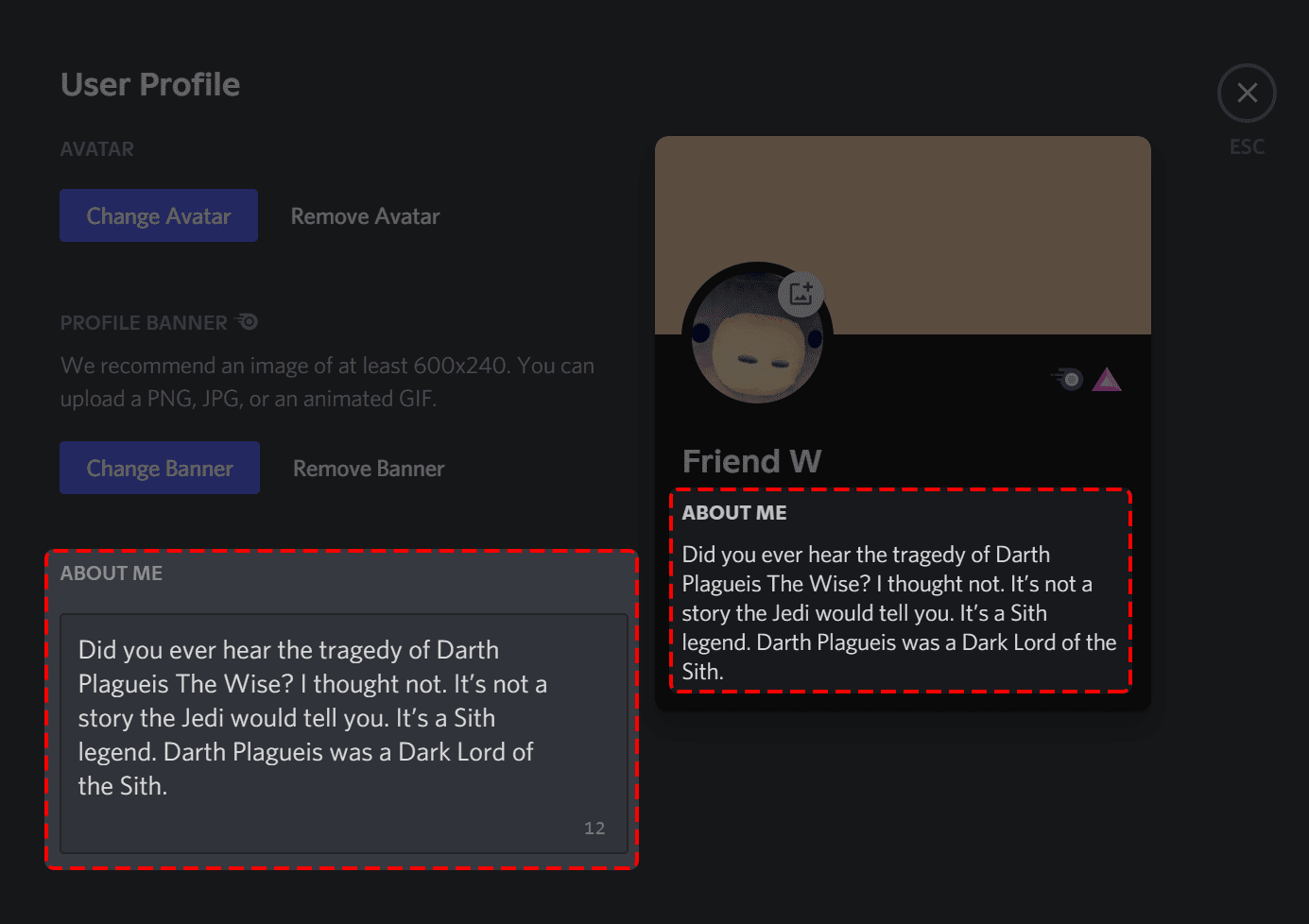
    • There you will get the option of “about me” with a text box to fill your personal details under 190 characters.
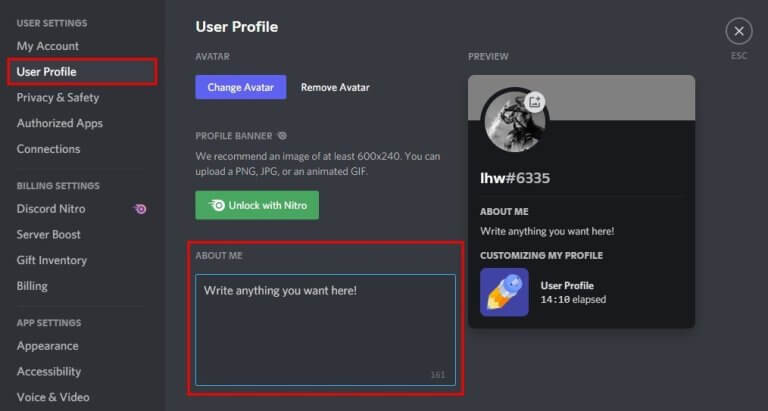
    Edit "About Me" option in discord
    • Fill in the details and click on the “Save” option to save the details. Otherwise, the change will not reflect in your “about me” section.

    How to access about me feature in discord
    • Once you have saved the details, you can preview them using the “Preview” section.
    • To view your profile, you must have to create your own server by clicking on the “+” icon on the left sidebar of the discord.
    • Once you are done with the server creation, click on the Your Profile option on the right sidebar of the discord.
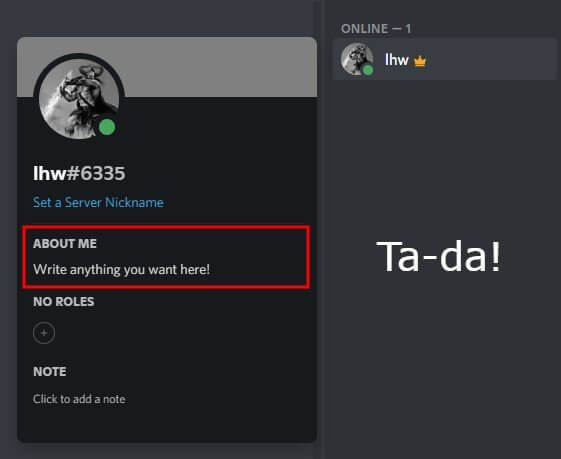
    About me feature for Discord Users

    If you are a Discord Nitro subscriber, you can add the custom banner by uploading the image in JPEG, PNG or animated GIF format. When someone will click on Your Name or Profile on your server, they will be able to see your “About Me” details and “Custom Banner” to know more about you. According to Discord, the banner image defaults to a colour that matches the colour of their profile picture.

    See also: How to Create Never-Ending (Loop) Videos for Discord

    Final Words!

    The latest Discord “About Me” feature is live for all users on the desktop version but comes with limited functionality in the mobile app. Users can view the custom profiles on the mobile app but cannot edit them through mobile. Although, this feature will be soon provided to the users on the mobile app, as per the Discord team. 

    For more information related to the Discord platform & its features, stay tuned with us, or if you have any queries related to it, then don’t forget to share it with us in the comments! Enjoy your gaming conversation with a touch of personalization on Discord!

    Quick Access
    • Buy Quora Upvotes
    • Buy Telegram Members
    • Buy Spotify Followers
    • Buy Reddit Upvotes
    • Buy Mixcloud Plays
    • Buy Youtube Views
    • Buy Twitch Viewers
    • Buy Facebook Likes
    discord custom profile feature How to use discord about me feature
    Divya Gupta
    • Facebook

    A professional content creator who loves to write about the latest trends, fashion, technology, and everything you might probably looking to search on Google. Every news or story is worth sharing if you know how to write it!

    Related Posts

    How to Identify Free Trial Offers on Company Websites

    May 30, 2026

    How to Make a Minecraft Server for Free: 5 Methods Tested

    May 28, 2026

    The First 24 Hours After Installing a Phone Tracker App: What Actually Matters

    May 26, 2026

    Best Free Minecraft Server Hosting: Tested Options That Actually Work

    May 23, 2026
    Recent Posts
    • Struggling With Social Media Messages? These Customer Support Outsourcing Companies Can Help June 11, 2026
    • 5 Helpful Marketing Tips for Expanding Business Growth June 5, 2026
    • Why Google Finds Your Page But Refuses to Index It June 4, 2026
    • How to Add Friends on Snapchat After You Unblock Them June 2, 2026
    • How to Identify Free Trial Offers on Company Websites May 30, 2026
    • How to Make a Minecraft Server for Free: 5 Methods Tested May 28, 2026
    • The First 24 Hours After Installing a Phone Tracker App: What Actually Matters May 26, 2026
    Categories
    • Business
    • Content Marketing
    • Entertainment
    • News
    • SEO
    • Social Media
    • Technology
    • Twitter
    Social Media

    Signal, Whatsapp, and Telegram : Which Is More Secure and Why?

    By Adit PinheiroJanuary 21, 20210

    If you are looking for the shortest possible answer, then here it is. Signal is…

    Anil Thadani Net Worth in 2026 (In Rupees & Dollars)

    February 4, 2026

    Why do Indian Youtubers Earn Less As Compared To The Rest Of The World? – Explained

    April 9, 2022

    Tips to Become a Vlogging Superstar

    December 11, 2017
    The SocioBlend Blog
    Facebook X (Twitter) Instagram Pinterest Vimeo YouTube
    © 2026 SocioBlend. Developed by Jitendra Kumar Singh.

    Type above and press Enter to search. Press Esc to cancel.