

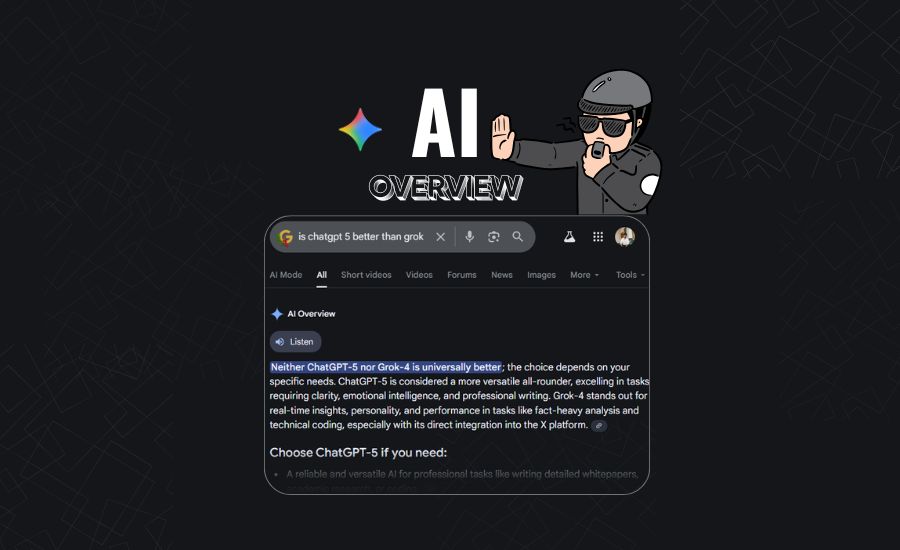
If you searched something on Google recently and saw a big box at the top giving an AI answer, that’s called AI Overview. It tries to answer your question using artificial intelligence, but sometimes it feels unnecessary or even confusing.
The bad news is, Google doesn’t give a full “off” button for this yet.
The good news is, there are a few easy tricks that make your searches clean again.
1. Turn It Off in Search Labs
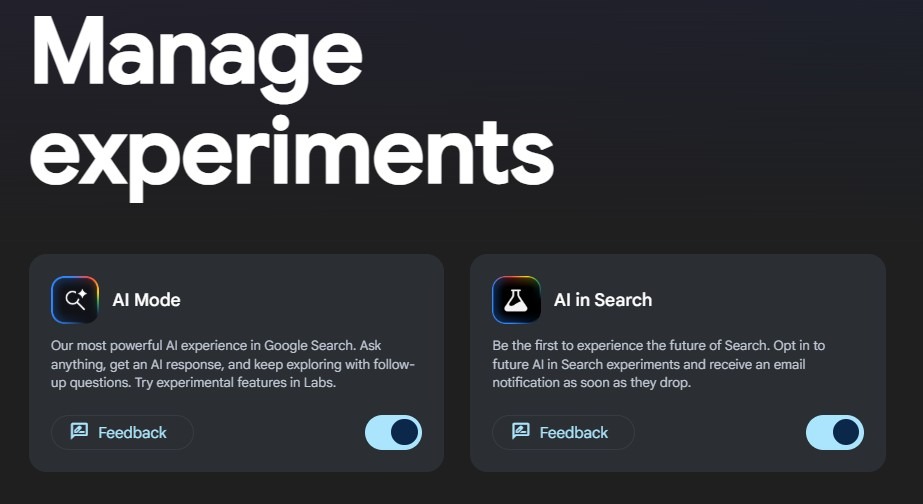
If you see the Labs (beaker) icon on your Google homepage, you can try this first:
- Click the Labs icon (it looks like a small glass beaker).
- Choose “AI Overviews and more.”
- Toggle it off.
This helps for most users who joined the Labs program.
But remember – Google still shows AI answers in some searches even after turning it off, so don’t be surprised if they appear again.
Also read: When Your AI Assistant Sounds Like You: A Strange Grok Experience
2. Use the “Web” Tab
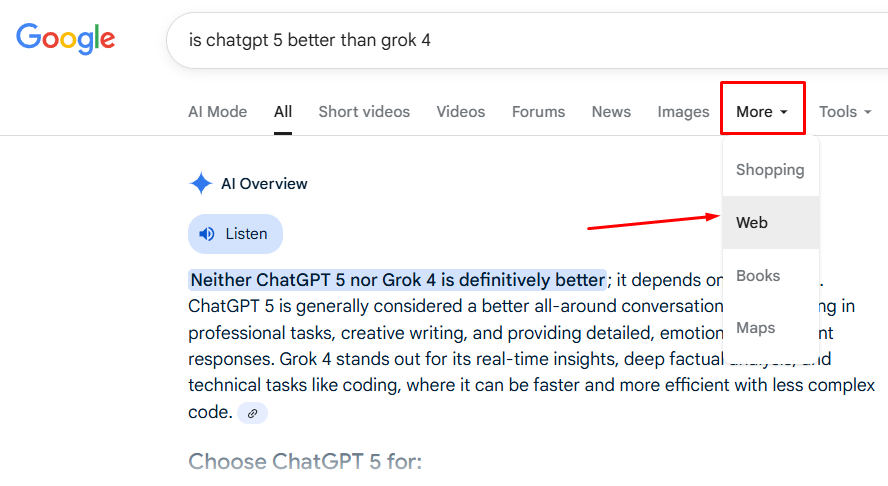
After you search something, you’ll see tabs like All, Images, News, and Web.
Just click on Web and it will show only the normal list of blue links – no AI Overview, no mixed boxes.
It’s not permanent, but it works quickly each time you search.
3. Add “-ai” to Your Search
This is the simplest trick that works surprisingly well.
Just type “-ai” (without quotes) at the end of your search.
Example:
how to bake cookies -ai
That small “minus” sign tells Google to remove results that mention “AI”, and in most cases, it also stops the AI Overview from showing.
This trick is handy when you want only real human-written content.
4. Use “udm=14” in the URL
You can also use a secret URL code that loads the old “web-only” view.
After searching something, go to the address bar and add this at the end of the URL:
&udm=14
Example: https://www.google.com/search?q=how+to+bake+cookies&udm=14
You can even save this version as a custom search engine in your browser so it becomes your default.
That way, every search you make opens without AI Overview automatically.
5. Install a Browser Extension
If you use Chrome or Firefox, there are free extensions like Bye Bye Google AI or Hide Google AI Overview.
They hide the AI box completely, so your results look clean again.
These extensions work by blocking that section on Google’s page. But if Google changes the layout later, they may need updates to keep working.
6. Try a Different Search Engine
If you’re completely done with AI answers, you can switch to a cleaner search engine like:
- DuckDuckGo – privacy-friendly, no AI summaries by default.
- Brave Search – gives you an option to turn off AI results.
These don’t feel bloated, and you get only real links.
Quick Recap
| Goal | What to Do |
| Stop most AI Overviews | Turn off “AI Overviews and more” in Search Labs |
| Skip AI once per search | Click the “Web” tab |
| Block it fast | Add -ai to your search |
| Force classic layout | Add &udm=14 to the URL |
| Hide AI permanently | Install an extension |
| Avoid AI fully | Use DuckDuckGo or Brave |
Conclusion
You can’t totally disable AI Overview everywhere yet, because Google is blending AI deeply into its search.
But with small tweaks like “-ai” or “&udm=14”, you can take back control and keep your results simple, just like before.
