

Discord status is basically like your digital flag waving in the wind, letting your pals know what’s up with you. You can set it to show whether you’re around to chat, busy with something else, or just kicking back. It’s a handy way to keep everyone in the loop about your availability or what you’re up to without having to type it out every time. Plus, you can spice it up with your own custom message or show off what game you’re diving into at the moment. It’s all about keeping the vibes flowing in the Discord community! Let’s directly jump on to the main topic and find out how we can update our Discord status.
How to Change or Add a Custom Status on Discord
Step 1: Log in to your Discord account.
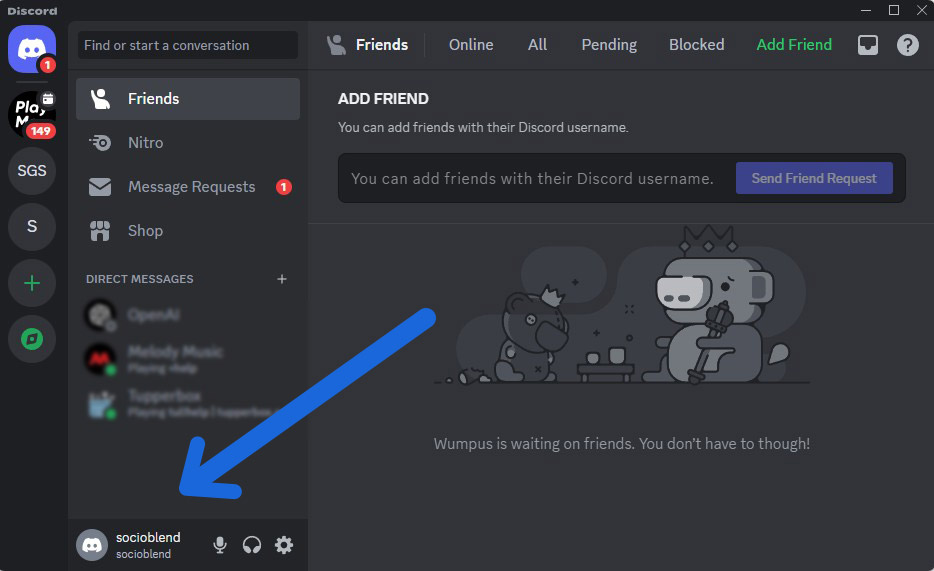
On the bottom left you can see your username. Click on your username as shown in the screenshot below.
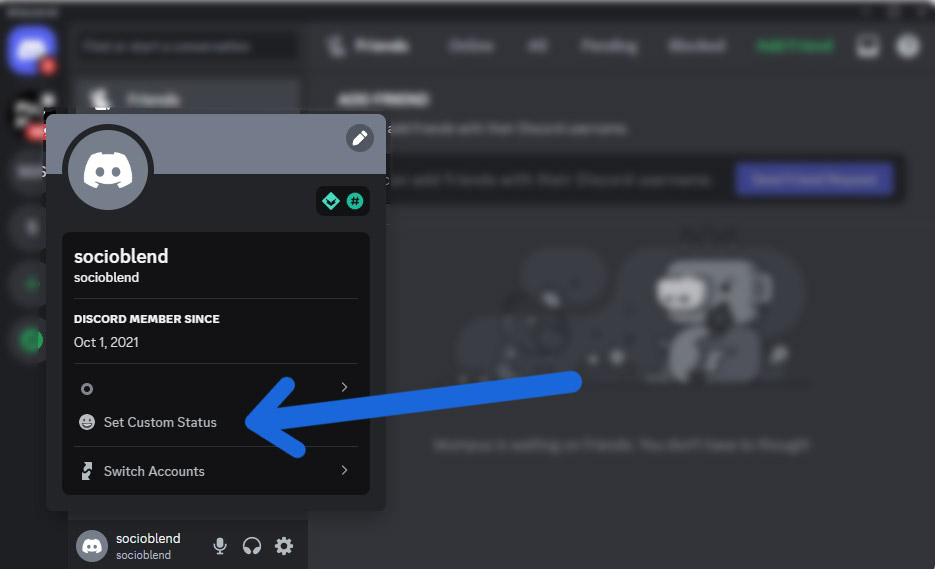
Step 2: Click on Set Custom Status when a new pop-up window appears.
Read also: What Is Discord HypeSquad and How to Join It
Step 3: Write a custom status on your Discord profile. Click on the emoji option if you want to add any emojis to your status.
From the option Clear After, select the duration of the status.
Now select the online status from the options Online, Idle, Do not disturb or Invisible.
If you want your friends to know whenever you come online, then set it to Online.
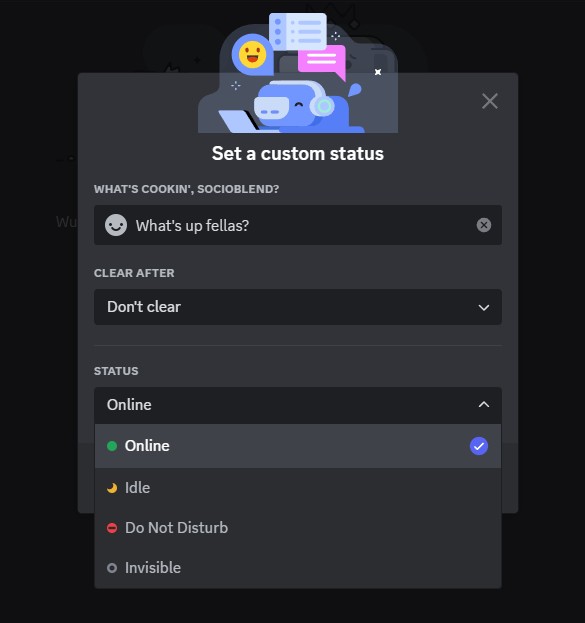
That’s it, click on the Save button and now you have successfully updated your status on Discord.
If you can’t think of anything right now and need ideas for Discord status then I have just done the heavy lifting for you. Below are a few curated quotes and funny Discord statuses.
10 Funny Discord Status Ideas
- “Just joined the ‘Wait, I’m typing!’ support group. We’re making progress… slowly.”
- “Ran out of memes to send. Send reinforcements ASAP!”
- “Channeling my inner Discord bot: beep boop beep“
- “Currently AFK (Away From Keyboard) but mentally still here. Kind of.”
- “Trying to organize my Discord servers… Send help, and maybe some coffee.”
- “Status: Online. Mentally: Probably somewhere between ‘Do Not Disturb’ and ‘Can’t Even Disturb.'”
- “Brace yourselves… I’m about to unleash a barrage of random emojis. You’ve been warned.”
- “Bio: Part-time Discord wizard, full-time procrastinator.”
- “Feeling Discordantly Discordant. Is that even a thing? Well, it is now.”
- “Currently contemplating the meaning of life in the #philosophy channel. Spoiler: It’s probably just more memes.”
Using Emojis for Your Discord Status
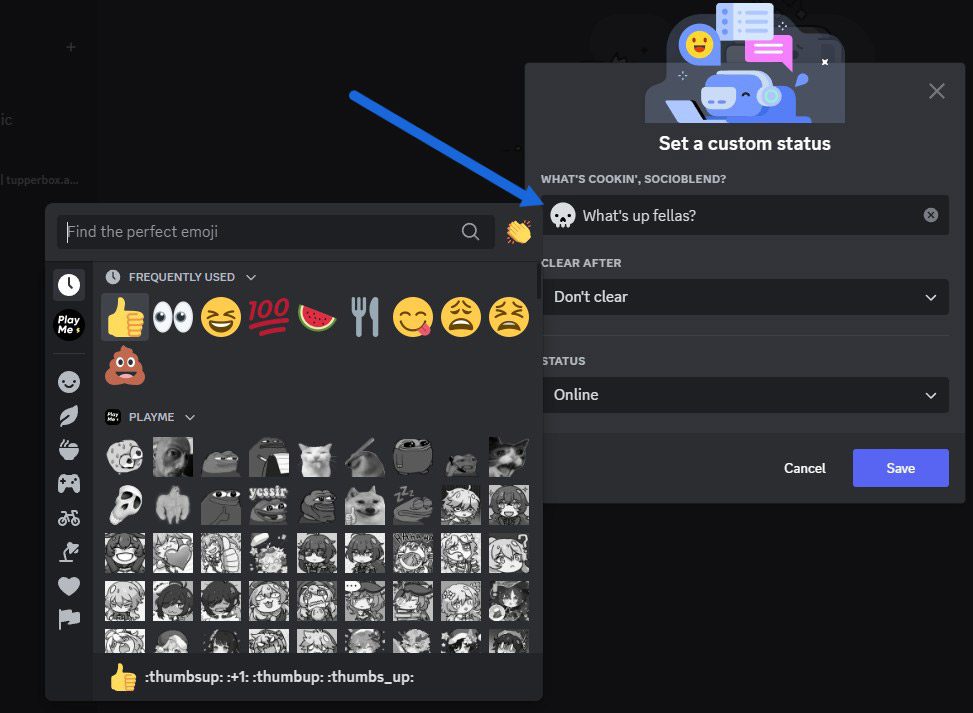
As you can see in the screenshow below, you can use any emoji while updating your status on Discord.
You can even select more cooler animated emojis from Play Me section but as soon as you select the animated emoji, you will see a warning coming up saying “You can’t use this emoji right now.”
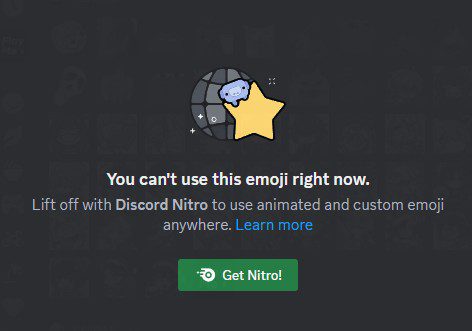
You need to purchase Discord Nitro to be able to use more premium features such as adding animated emojis and much more. Nitro plans starts from $9.99 and $99.99 for monthly and annually respectively.
Also read: What Is Discord Checkpoint
