

If you still don’t know how to set up a YouTube business account, it’s not too late to get started.
Every day, YouTubers watch more than a billion hours of videos on YouTube, but only 9% of small businesses open their own channels. The most important thing you need to make your YouTube channel successful is what you already have. In other words, you need to understand who your viewers are and how much you think they are worth it. Being able to monitor your viewers and interests will help you decide what to focus on when creating YouTube content.
Video content can enhance your branding activities and showcase your business experience. With the increase in the use of YouTube, the opportunity is also getting bigger for businesses.
In this step-by-step guide, we will see how to set up a fully optimized YouTube channel for your business.
1. Create a Google account
To create a YouTube channel for business, log into your existing Google account, or create a new account dedicated to your YouTube business account.
Here is Why Getting Monetized on YouTube does not Guarantee Money
2. Create a YouTube channel
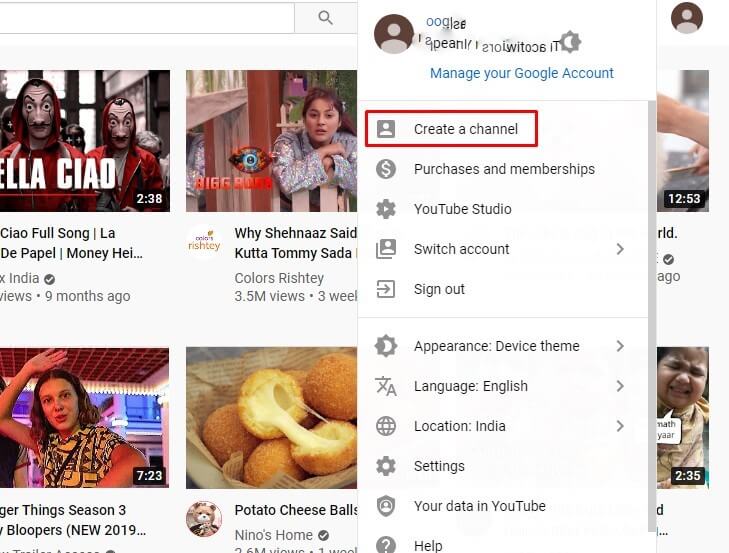
a. Go to YouTube.com when you log in to your business-only Google account. Click on your Profile in the top right and then select “Create a Channel” from the drop-down menu as shown below.
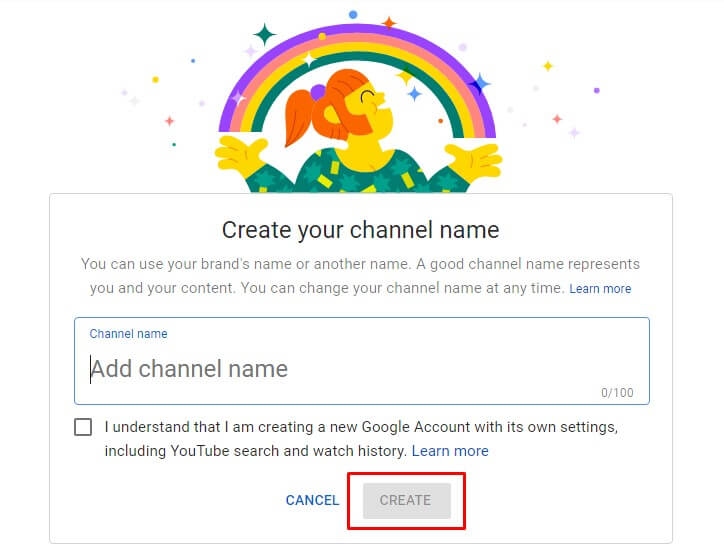
b. You will then see this page. Enter your company/brand name and click “Create”.
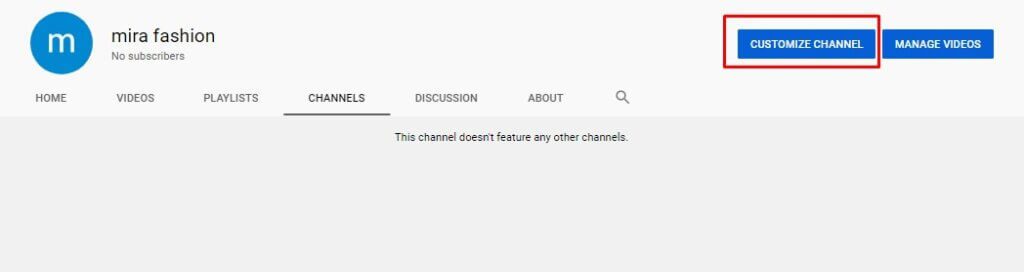
c. You will then see this page. Click on “Customize Channel”:
(See also: Buy Buy YouTube Views and Subscribers on a Budget from Socioblend)
3. Customize your YouTube channel
There are 3 things to customize:
a. Profile Picture
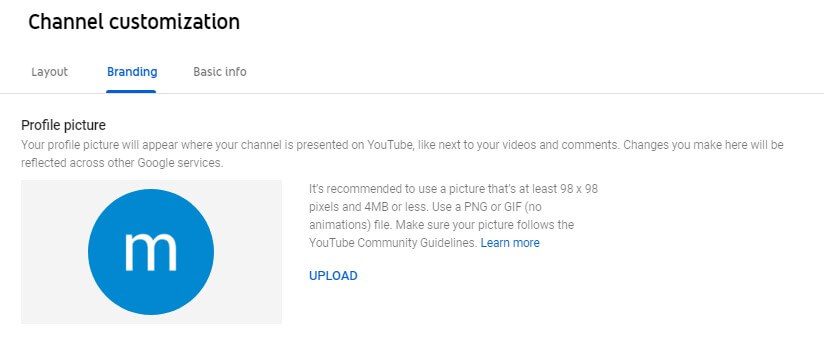
By default, the profile image is tied to your brand image. The profile image is usually found where the company logo is located. Or, if you are the face of the company, put your image there.
We recommend using a 98 x 98 pixel unanimated PNG, or GIF image. You’ll also need to make sure Youtube displays well with a smaller size and square and circular cutouts based on multiple spots using the profile picture.
b. Banner Image
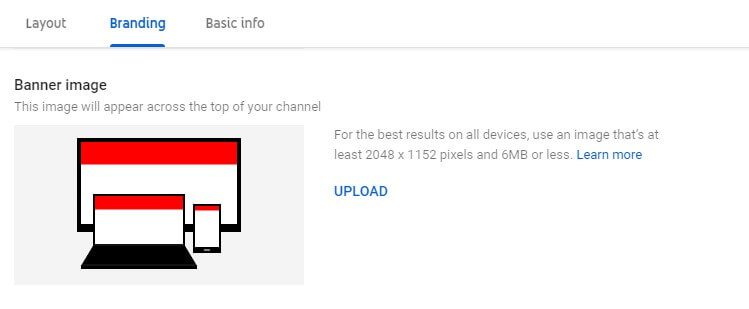
Add channel graphics to show off your brand personality and create a more engaging YouTube profile. Channel graphics must be less than 6MB and at least 2048 x 1152 pixels. However, YouTube recommends using 2560 x 1440 pixels for the best results on all devices.
YouTube provides a preview of each image you upload to show you how it will look on a variety of devices. You can also change the cropping of the image.
c. Channel Description
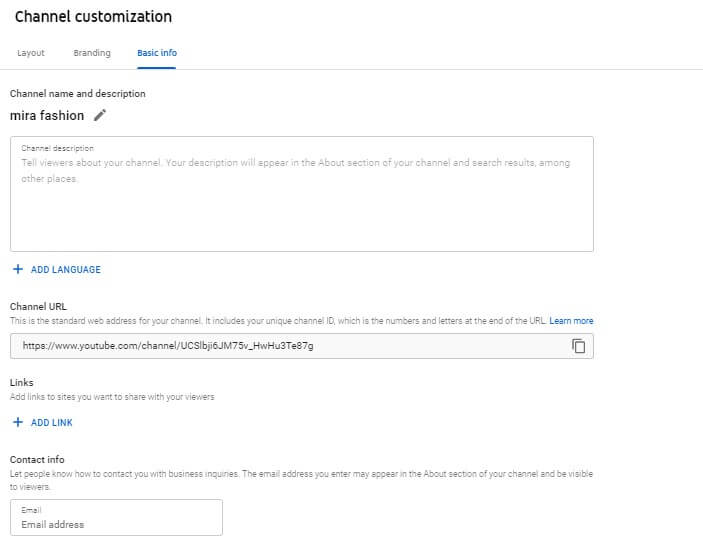
Keep this section simple. Write some short paragraphs about who you are and what you do. Add some keywords to help people find you when they search on YouTube. You must also include your business website, business email address, and other contact methods, as shown above.
See also: YouTube Monetization Guide – How to get it done
4. Add Manager to YouTube Channel
If you want one or more helpers to help you manage your YouTube channel, you can add them as a manager like this:
a. Click on Profile at the top right and select “Settings” from the drop-down menu as shown below.
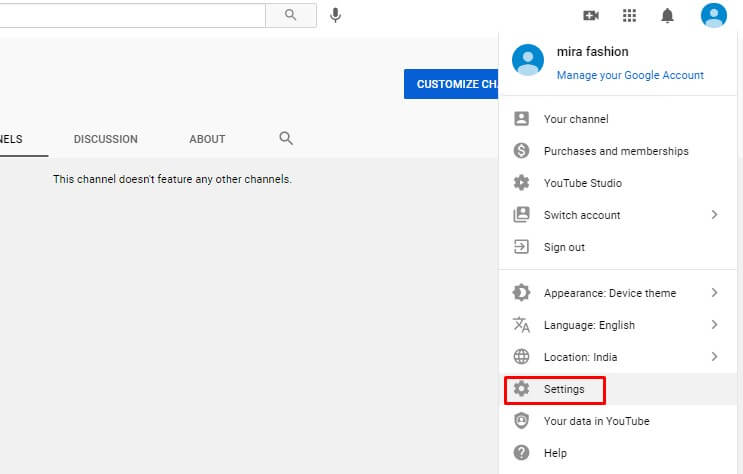
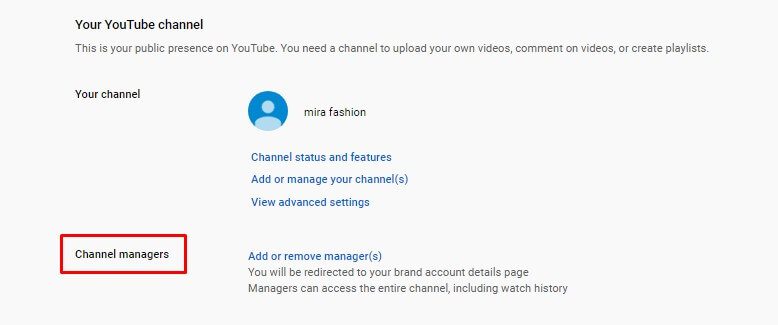
b. Then you will see this page. Click Add or remove administrators.
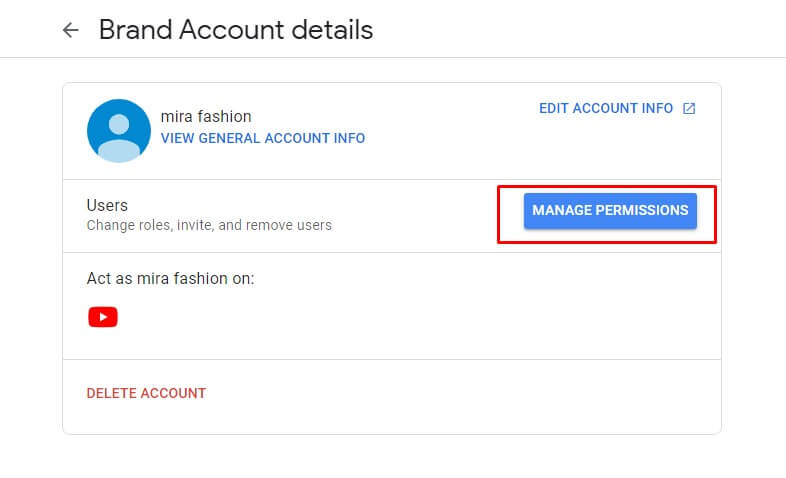
c. Click the “manage permissions” button
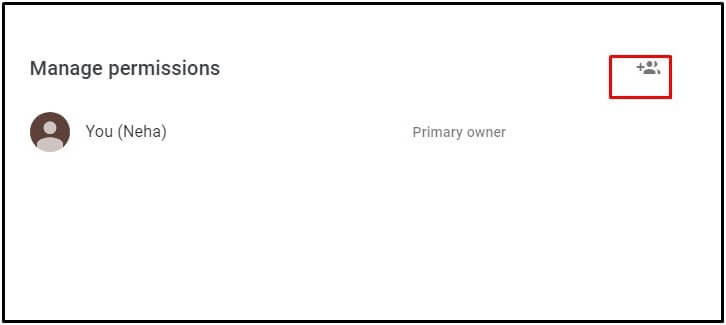
d. In the box that appears, click on the icon in the upper right corner and add the email address of the person you want to invite to manage your YouTube channel.
That’s all.
You can change other YouTube settings and change them later if you like. But now the YouTube channel is ready to take to the streets.
