Close Menu
    Facebook X (Twitter) Instagram
    The SocioBlend BlogThe SocioBlend Blog
    • Social Media
    • Technology
    • Business
    • SEO
    • Content Marketing
    • Write for us
    The SocioBlend BlogThe SocioBlend Blog
    Home»Social Media»How to Turn Off Auto Emoji on Discord
    Social Media

    How to Turn Off Auto Emoji on Discord

    Mohit MaheshwariBy Mohit MaheshwariMarch 2, 2024Updated:December 16, 2025No Comments3 Mins Read
    How to Turn Off Auto Emoji on Discord
    Share
    Facebook Twitter LinkedIn Pinterest Tumblr WhatsApp

    Discord is a popular platform for gamers, communities, and friends to communicate and collaborate. One of its features is auto-emoji, which automatically converts certain text strings into emojis. While this feature can add fun and expressiveness to chats, some users may prefer to turn it off for various reasons.

    How to Turn Off Auto Emoji on Discord

    To disable the auto-emoji feature in Discord, follow these steps:

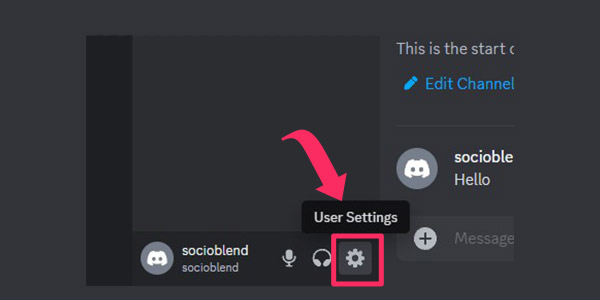
    • Open Discord and navigate to User Settings.
      Discord user settings
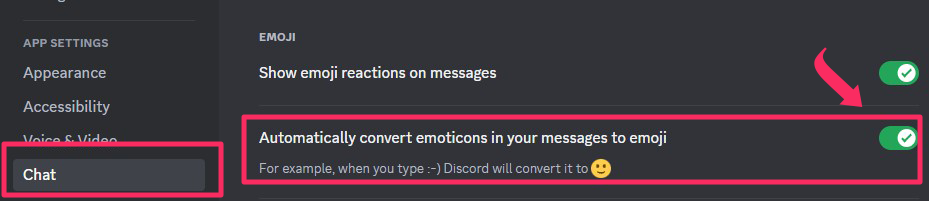
    • Scroll down and select the Chat option.
    • Scroll down and toggle off the Automatically convert emoticons in your messages to emoji option.
      Disable emoji on Discord

    That’s it, now you have successfully disabled auto emojis on Discord.

    You may also like to read: What is Discord Hypesquad

    How to Add/Upload  Emojis on Discord

    Creating custom emojis on Discord allows you to personalize your server and express yourself uniquely. Here’s how to do it:

    • Navigate to your Discord server.
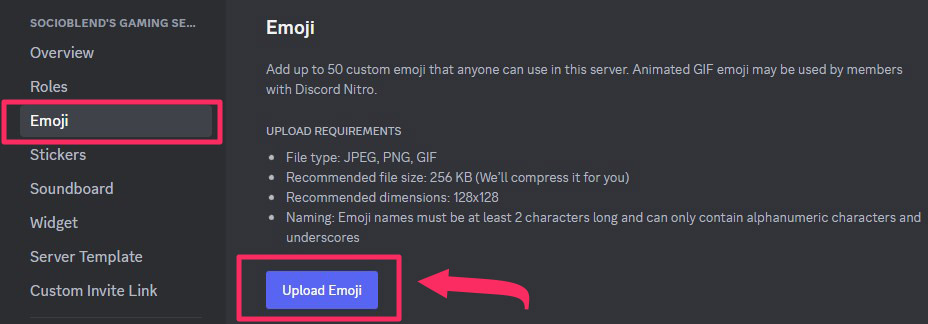
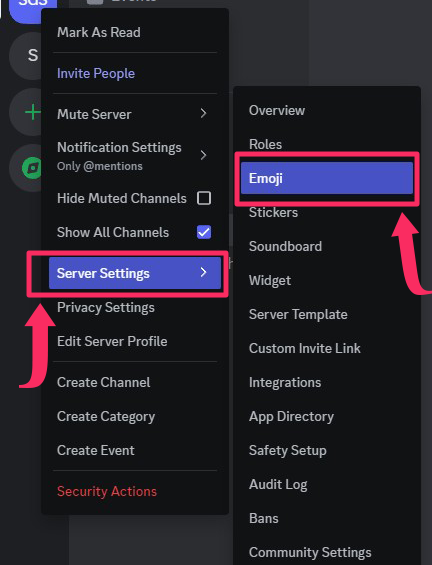
    • Click on the server name and select Server Settings.
      Discord server settings for emoji upload
    • Go to the Emoji tab.
    • Click Upload Emoji and select the image file you want to use as an emoji.
      upload emoji
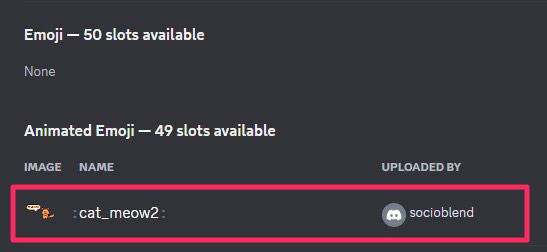
    • Choose a name for your emoji and click Save.
      Emoji upload on Discord successful

    Note: To use animated emoji, you need to have Discord Nitro Subscription. You can use non-animated custom emojis without paying. You can also add emoji to your Discord status if you want to.

    Sites like emoji.gg has thousands of custom emojis which you can download for free.

    You may also like to read: How to add your Discord Server to Disboard

    How to Use Custom Emojis in Discord Chat

    Once you’ve created custom emojis, you can easily use them in your Discord chats and messages. Here’s how:

    • Open Discord and navigate to the chat or message where you want to add an emoji.
    • Click on the emoji icon in the chat bar.
    • Select the emoji you want to use from the list of available emojis or search for it using keywords.
    • Click on the emoji to add it to your message.

    What Size are Discord Emojis

    Discord emojis have specific size dimensions and file requirements to ensure optimal display and performance. Typically, Discord emojis are displayed at a size of 32×32 pixels for standard emojis while animated emojis (128×128 pixels) are a bit larger to accommodate their dynamic movements. The file size limit for uploading emojis to Discord is 256KB.

    • Emoji file type accepted are PNG, JPG and GIF
    • If uploaded file is more than 256KB, Discord will automatically compress it for you

    Also read: What Is Discord Checkpoint

    Disable auto emoji discord Turn off auto emoji
    Mohit Maheshwari
    • Website
    • Facebook
    • X (Twitter)

    SEO Analyst and a part-time Content Writer.

    Related Posts

    Instagram Reposts Tab: The Complete Guide for 2026

    April 4, 2026

    Real vs Fake YouTube Views: What YouTube Actually Rewards

    April 3, 2026

    Organic vs Paid YouTube Views: Which One Actually Grows Your Channel Faster?

    March 31, 2026

    Best Site to Buy YouTube Views in 2026 (Tested and Compared)

    March 29, 2026
    Recent Posts
    • Instagram Reposts Tab: The Complete Guide for 2026 April 4, 2026
    • Real vs Fake YouTube Views: What YouTube Actually Rewards April 3, 2026
    • Organic vs Paid YouTube Views: Which One Actually Grows Your Channel Faster? March 31, 2026
    • Best Site to Buy YouTube Views in 2026 (Tested and Compared) March 29, 2026
    • The Rise of OpenClaw: Is This the Most Dangerous Project on GitHub? March 27, 2026
    • YouTube SEO Checklist 2026: Rank Your Videos and Get More Views March 26, 2026
    • Best Time to Post on YouTube to Get More Views – Full Guide March 23, 2026
    Categories
    • Business
    • Content Marketing
    • Entertainment
    • News
    • SEO
    • Social Media
    • Technology
    • Twitter
    Social Media

    How to Create Engaging Instagram Stories

    By Mini JainFebruary 23, 20170

    Instagram stories can be an effective way to grab attention of the followers. These stories…

    5 Useful Tips to Increase Your Tweet Impressions and Profile Visits

    February 5, 2018

    How to Download Music from Spotify in 2020

    December 1, 2020

    5 Reasons to Buy YouTube Views from SocioBlend

    December 5, 2017
    The SocioBlend Blog
    Facebook X (Twitter) Instagram Pinterest Vimeo YouTube
    © 2026 SocioBlend. Developed by Jitendra Kumar Singh.

    Type above and press Enter to search. Press Esc to cancel.